
Introduction to Google Contacts: What It Is and How to Use It

Google Contacts has become an increasingly popular product for staying organized. It allows users to store and manage their contacts across multiple devices, providing a better way of organizing contact information. Not only is Google Contacts easy to use and highly secure, but it also helps you save time you would have spent on manually entering data into your address book.
It’s a go-to solution for professionals, business owners, and individuals alike, giving users peace of mind knowing their contacts are safely stored and easily accessible. This product’s popularity is backed by its reliability, ease of use, and robust security measures that ensure only authorized users have access to your data.
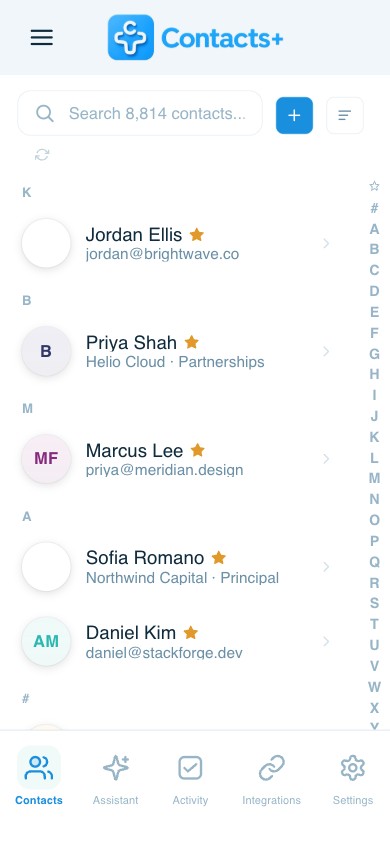
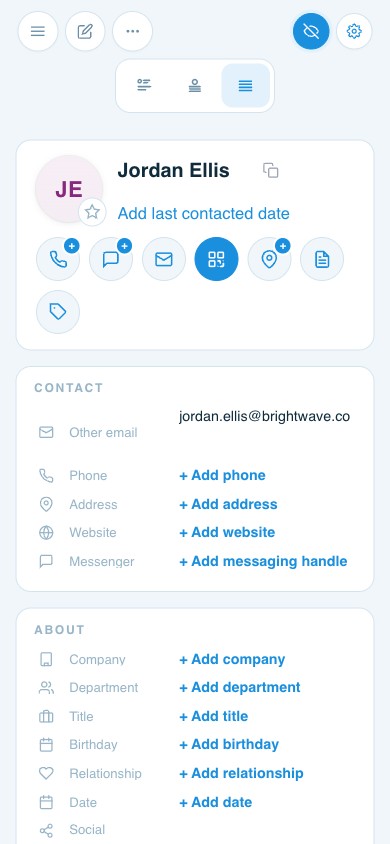
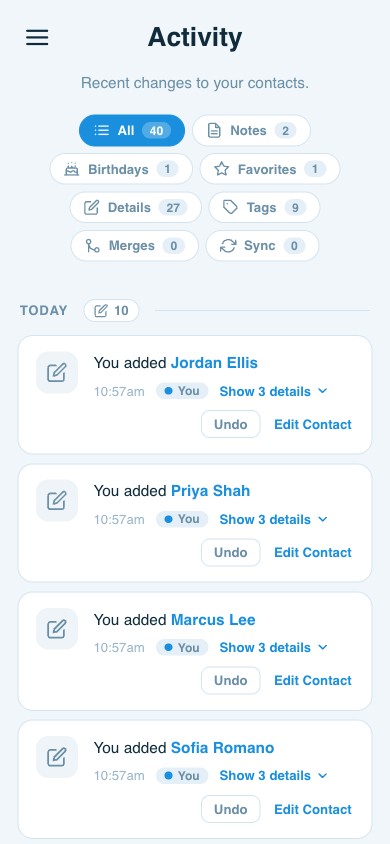
Let’s dive a little deeper into Google Contacts so you can learn more about it, including how it compares to our contact management tool, Contacts+.
Key Takeaways
- Multi-Platform Access: Google Contacts syncs across Android, iOS, Windows, and web browsers.
- Easy Migration: You can import and export contacts using CSV files, though formatting must be precise to avoid errors.
- Efficient Management: Built-in tools allow for merging duplicates, creating labels/groups, and quick searching.
- Troubleshooting: Common issues, such as sync errors or missing contacts, can usually be resolved by checking connectivity or restoring from backups.
- Advanced Alternatives: Contacts+ offers enhanced features such as cross-platform deduplication and shared team address books that Google Contacts lacks.
How to use and manage Google Contacts
Google Contacts is available on multiple platforms, including Android, iOS, and Windows. It also includes a web version, so users can access their contacts from any device with a web browser. All of these versions are securely connected to one another, allowing users to manage their contacts from anywhere at any time.
With Google Contacts, users can easily import, export, and synchronize their contacts with other services like iCloud, Outlook, and more. Google Contacts also offers helpful features, such as automatic backups, for added peace of mind.
How to import contacts to Google Contacts
Importing contacts to Google Contacts can be done in three simple steps:
- Choose Source: Select your device’s address book or an external file (like a CSV).
- Select Fields: Check or uncheck the specific contact fields you wish to import.
- Finalize: Complete the import to make the information ready for use.
Finally, all of the information is imported into Google Contacts and ready for use. The great thing about this process is that users can add multiple contacts at once, making it easy to manage large contact lists in no time. However, users run into issues when uploading a .CSV file to Google Contacts. These issues are usually due to:
- The wrong file format. .CSV is the only file format Google Contacts accepts.
- Missing or wrong fields. Your form fields must meet specific requirements, such as name, email, and phone number.
- Blank and duplicate entries. Before uploading your list to Google Contacts, you have to review it for these errors.
These are just some examples of issues you’ll want to steer clear of when using Google Contacts for contact management.
How to export contacts from Google Contacts
To export contacts, select the contacts you would like to export, then choose an export destination – either the device’s address book or an external file, such as a CSV. Once the source has been selected, all contact information will be exported in the specified format. This process is helpful for those who need to share their contact information with others, for those who have multiple address books, or for those wanting to upload their contacts to another platform, like a CRM.
With Contacts+, however, you can share contacts with your team by simply adding them to your team’s shared address book. Collaboration has never been easier, and you can keep your contacts in sync across numerous Google accounts without exporting them. All your contacts across your Apple and Microsoft accounts are centralized, up to date, and deduplicated in one place.
How to add, edit, and delete contacts
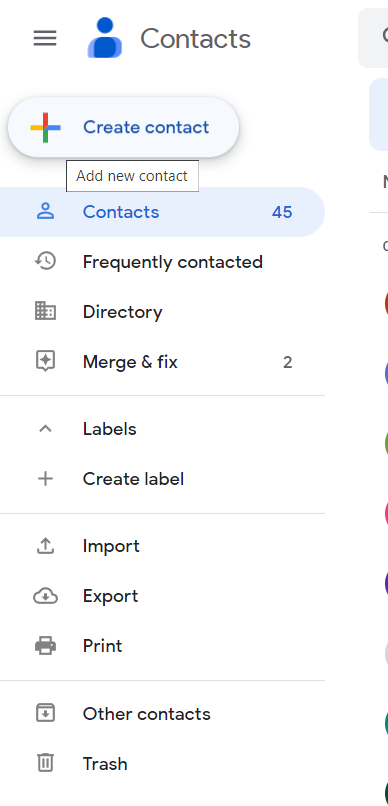
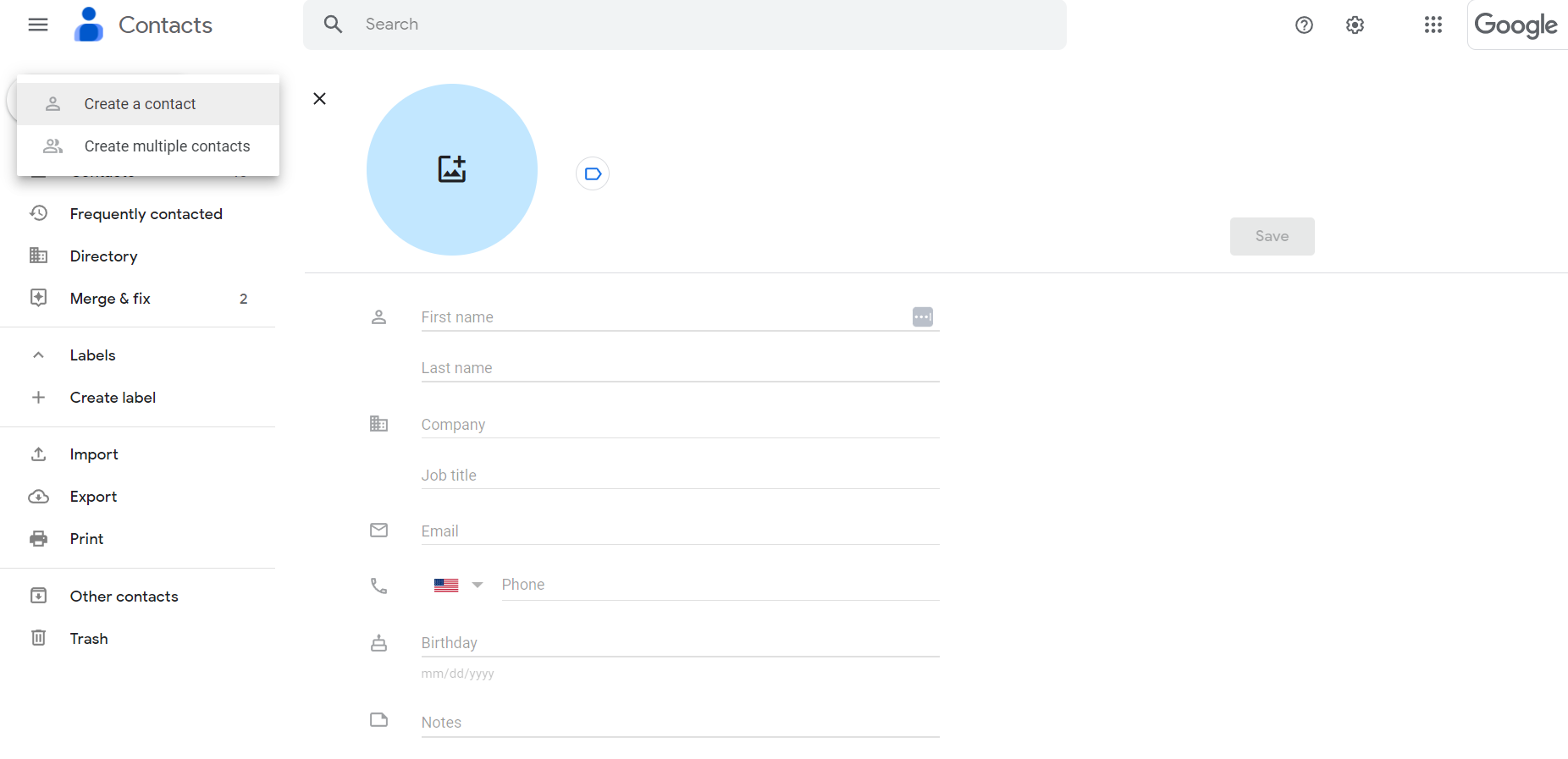
- Add: Click \”Create Contact,\” fill in the required fields, and click \”Save.\”
- Edit: Select a contact, modify the information, and click \”Save.\”
- Delete: Select the contact and click the delete button at the bottom of the page.
How to merge duplicate contacts
Merging duplicate contacts can be a useful way to keep your contact list organized and up-to-date. To do this in Google Contacts, simply select the two or more contacts that you want to merge and then click “Merge” at the bottom of the page. All information from both contacts will then be combined into a single entry under the selected name.
One thing to note about Google Contacts is that you cannot merge duplicate contact records between separate Google accounts. Unlike Google Contacts, with Contacts+, if you have numerous Google accounts, or Apple, Google, and Microsoft accounts, you can merge those duplicate contacts across those accounts. Contacts+ makes your life a little easier by syncing all your contacts from various accounts into one platform. Deduplication is achieved at the source rather than across multiple accounts.
How to create and manage contact groups
Creating and managing contact groups is also an important part of keeping your address book organized. To create a new group, click “Groups” in the left menu, then click “Create” to open a form to create a new group with its own set of contact members.
You can also add or delete members from existing groups here by simply checking or unchecking their names.
Groups are great for segmentation purposes. If you want to send personalized outreach to a portion of your contacts, you can simply group them based on qualifying factors. You can perform this action in Contact+ too. However, Contacts+ elevates the segmentation process with smart tags. Any tag you add to a contact in Contacts+ will carry over to your other synced accounts. And if you’ve applied a label to a contact in Google Contacts, it will translate to a tag in Contacts+.
How to search and filter contacts
To search or filter contacts in Google Contacts, type the name of the contact you’re looking for in the search bar at the top of the page, and all related contacts will be quickly displayed on the screen.
Some people use Google Contacts as both a professional and personal CRM. Their contact list could include friends, family, acquaintances, or professional peers. Additionally, like Contacts+, Google Contacts users can filter contacts by categories, such as “family” or “business,” using the filters located on the left side of the page. This makes it easy to find exactly what is needed without having to sort through a long list of contacts.
Google Contacts: Common issues and troubleshooting
Despite its ease of use, some users may experience minor issues when using Google Contacts. Common problems include:
- Duplicate Contacts: One of the most common issues is duplicate contacts. This can happen if you have imported contacts from different sources or synced contacts with multiple devices.
- Missing Contacts: Sometimes, users may find that some of their contacts are missing from their Google Contacts list. This can happen if the contact was accidentally deleted or if it was not synced properly with other devices.
- Syncing Issues: Sometimes, users may have trouble syncing their Google Contacts with other devices or apps. This can happen if there are connectivity issues or if there are conflicts between different sources of contact data.
- Incorrect or Incomplete Information: Users may find that some of their contacts have incorrect or incomplete information. This can happen if the contact was not properly entered or if the information was not updated.
- Difficulty in Managing Contacts: Google Contacts can be overwhelming for some users, especially if they have a large number of contacts. Users may have difficulty organizing and managing their contacts, especially if they are not familiar with the various features and functions of the app.
- Privacy Concerns: Some users may be concerned about the privacy of their contact information stored on Google Contacts. They may worry that their data could be accessed or used without their permission.
- Technical Issues: Like any other software, Google Contacts can encounter technical issues from time to time, such as app crashes or slow performance.
Here’s how to troubleshoot these issues:
- Duplicate Contacts: To address duplicate contacts, users can use the Merge Duplicates feature in Google Contacts. This feature helps to identify and merge contacts that have similar or identical information.
- Missing Contacts: If a contact is missing, users should check if the contact is still available on other devices or accounts that are synced with Google Contacts. If the contact is not available, users may need to restore a previous backup of their contacts.
- Syncing Issues: Users can try disconnecting and reconnecting their Google account from other devices or apps. They can also check if there are any conflicts between different sources of contact data and choose the correct source to sync from.
- Incorrect or Incomplete Information: Users should check if they have entered the correct information for the contact. They can also try updating the information manually or using the Update option in Google Contacts.
- Difficulty in Managing Contacts: To manage contacts more effectively, users can create groups or labels to categorize their contacts, use the search function to find specific contacts, and customize their view settings to display only relevant information.
- Privacy Concerns: Users can review the privacy settings for their Google account and adjust them according to their preferences. They can also delete any contacts that they no longer need or use.
- Technical Issues: If Google Contacts encounters any technical issues, users can try clearing the cache and data for the app, updating the app to the latest version, or restarting their device. If the issue persists, users can contact Google Support for further assistance.
Google Contacts compared to Contacts+
| Feature | Google Contacts | Contacts+ |
| Multi-Account Sync | Limited to Google | Syncs Google, Apple, and Microsoft |
| Deduplication | Per account only | Cross-platform deduplication |
| Team Sharing | Manual export/import | Shared team address book |
| Mobile App | Yes | Yes (with advanced search) |
Ultimately, both Google Contacts and Contacts+ have their advantages and disadvantages, so it’s important to consider your specific needs before deciding which one is right for you. However, if you want to learn more about Contacts+, sign up for a free account today!
Related articles



Put your contacts to work
Sync, enrich, and clean your entire address book with ContactsPlus — free to start.
Sign up free ← Back to all articles